
Underline Font Generator – Copy & Paste Underlined Text
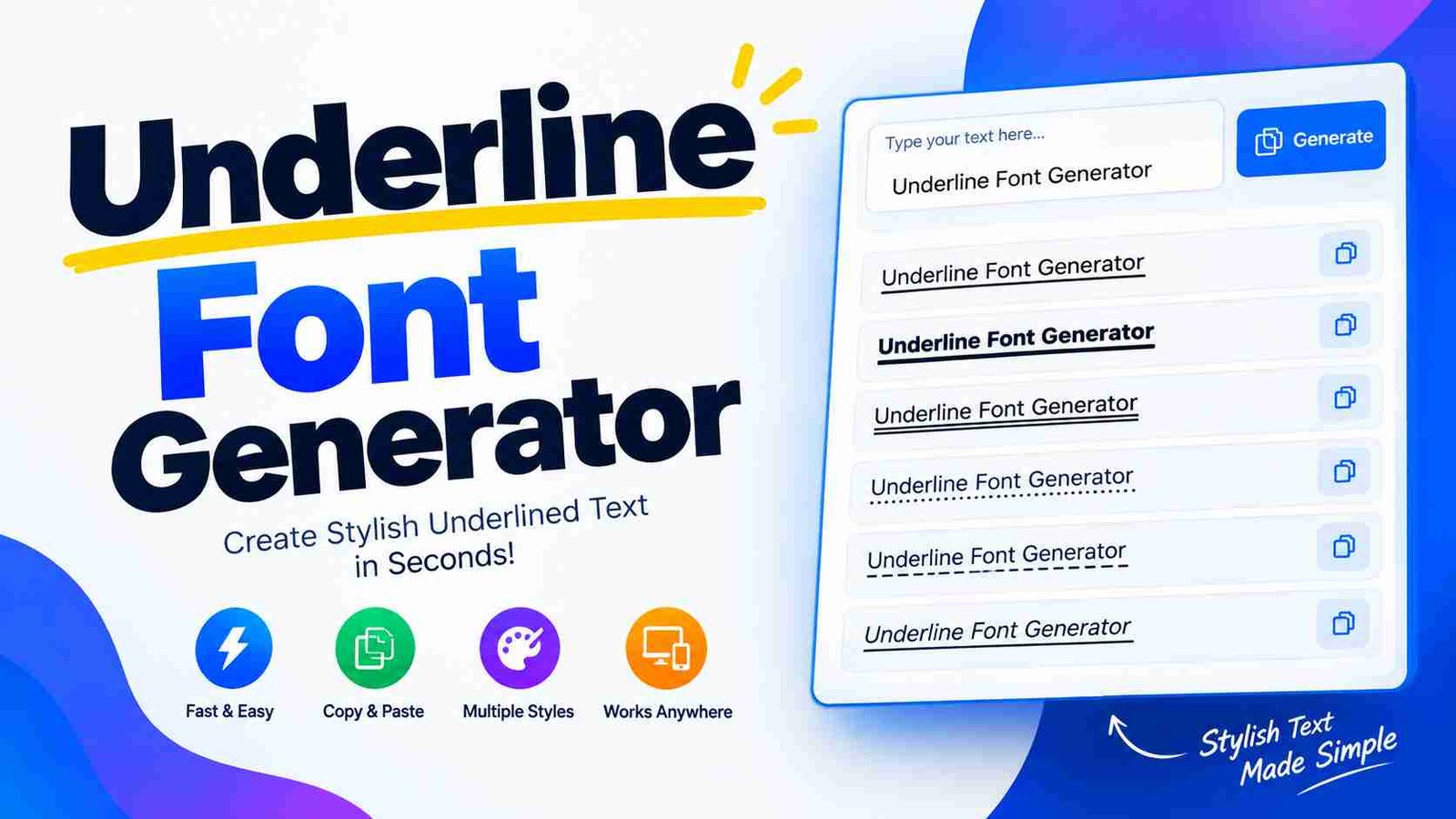
Underline Font Generator
Create stylish underlined text instantly. Type or paste your text, choose an underline style, then copy it anywhere.
Underline Style
Text Options
An underline text generator creates decorative strokes beneath each character, using Unicode combining low lines for an underlined look. From my experience, this produces copy-paste text without requiring an installable font, making practical emphasis easier.
Choose an underline style set, enter current text, then copy the result into a Unicode-supporting field. When the tool runs locally, text never leaves the browser, while combining marks simulate underlining without changing your wording.
Table of Contents
How Does The Underline Font Generator Work?
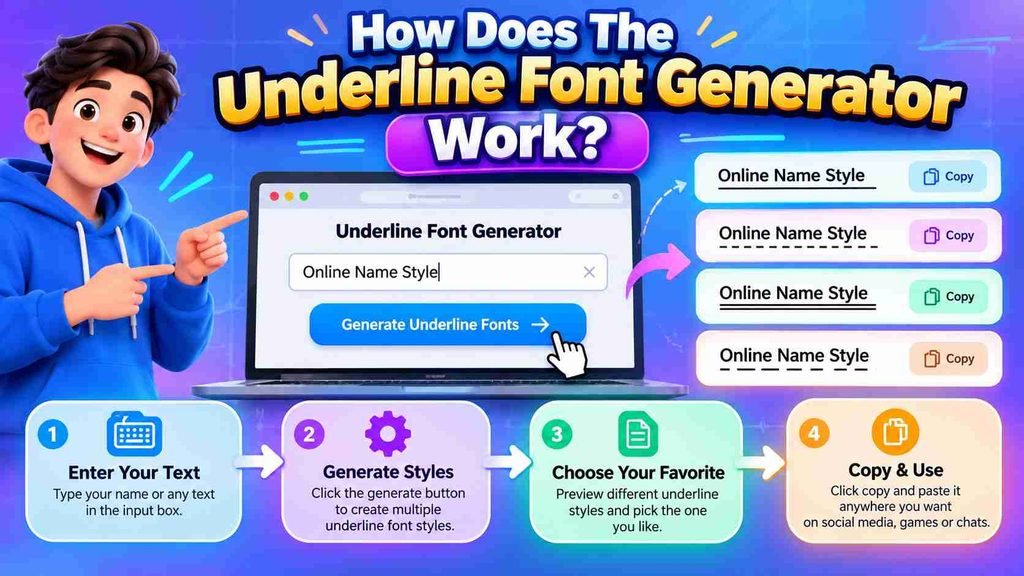
An ordinary letters underline text generator works by converting Unicode characters into an underlined appearance without requiring a font file. You type a phrase, and the tool prepares copy and paste text instantly.
Behind the interface, formatting controls select compatible Unicode-friendly field characters, producing precise results for social platforms. In practice, I test the character output in multiple apps because each device or browser can interpret text differently.
How To Use The Underline Text Generator
Start by type your text into the input area, then examine the Unicode style options that appear. I usually compare several treatments first, because readability can change before you copy anything for publishing without extra.
For social profiles, test the result inside the username field, bio, or caption where it will actually appear. Choose a readable style, copy the finished text, and paste it directly into your chosen platform later.
Where To Use Underlined Text
In my experience, underlined text works well in captions, social media posts, comments, and bios, giving readers a clear visual cue around important text without cluttering ordinary writing or distracting decorative effects for emphasis online.
I also use it in messages, profiles, and text fields across Instagram, TikTok, and Discord; Unicode styling keeps emphasis portable, while preview before publishing helps confirm the result looks right with extra care anywhere practical.
Also Read: Cursive Text Generator
Tips For Getting The Best Results
For polished results, use underlining sparingly where important concepts need attention. Check mobile rendering, then compare serious profile headlines, short profile lines, and social bios before publishing when spacing feels crowded or uneven on screens.
On social posts, reserve stronger emphasis for creator captions, post hooks, branded headings, and calls-to-action. I also test Instagram bios, TikTok captions, Twitter/X posts, Discord, gaming, and LinkedIn across devices before posting carefully.
Preview And Compatibility
Previewing an underline style before publishing is more than cosmetic. In my testing, character support, appearance, and device rendering can shift between an app or editor, making a quick preview useful for checking consistency overall.
Compatibility also varies by platform and treatment. Compare styles across iPhone, Android, and desktop, because fancy fonts can render differently. Check where you plan to post, especially when unusual characters become boxes unexpectedly before publishing.
Free, No Signup, Privacy
A genuinely free underline tool should not force accounts, payments, or tracking. I prefer no signup workflows because users can type, copy, and style text immediately, keeping personal writing outside unnecessary account steps entirely today.
Privacy matters most when formatting happens directly in the browser. A useful generator should avoid data collection, preserve your text locally, and offer free tools without requiring an account or subscription, keeping no registration required.
Available Underline Styles
Available underline styles range from Cursive and Gothic looks to Bold, Italic, and Monospace treatments. I usually test several variants because an underline can feel subtle, decorative, or visible depending on the text and platform.
For emphasis, Strikethrough can be explored alongside underline effects, while Bold Cursive adds personality. Some generators provide ready-made versions, letting you compare results before you type once and reuse the featured style anywhere with confidence.
Related Styles
Related styles expand beyond a single underline, letting creators compare Double underline, overline, strike, and Under-arrow treatments when a plain line feels too predictable. I often test these beside short names before choosing one.
Other options such as Underhill, Dashing, Skyline, Lanes, Gulls, Train Tracks, or Vintage Ellipses can change emphasis without changing wording. For profiles, I favor restrained patterns because clarity usually survives across more interfaces and devices.
Popular Fonts
Popular underline styles often sit beside tilde strikethrough, short strikethrough, and italic (serif) choices. I usually compare them in text generators to see how each treatment affects emphasis, spacing, readability, and compatibility across platforms naturally.
For visual contrast, bold (serif) can stand out without overwhelming layouts, while lower squiggles and hooks create an option. On a frontpage, I favor restraint, testing every style before use, then reviewing this complete list.
Related Free Tools
Beyond an underline tool, I pair it with blog guides and platform font generators when testing how styled text behaves. This approach helps creators compare practical options before choosing a format for specific publishing needs.
For broader workflows, use-case guides can connect an underline result with a stylish text generator or italic text generator. I find these supporting resources useful when building consistent profiles, captions, and messaging styles across platforms.
What This Underline Page Does
On this page, I treat underlining as a focused text treatment: choose a phrase, adjust its visual emphasis, and keep the readable result balanced for digital content, especially when a title needs stronger attention online.
My practical approach favors quick testing: create underlined text, compare clean underlined styles, then check display differences before sharing. This keeps reader’s focus intentional while avoiding decorative overload across everyday platforms and messages consistently online.
Popular Directions For Underline
Popular underline directions usually stay horizontal, yet double macron and single low line patterns can create different visual rhythms. I often test train-track styles side by side before choosing a direction for underline captions online.
In practice, directional contrast works best when the base text remains stable: underline illusion can suggest motion, while Gulls, Lanes, and Skyline give playful variants that suit clarity without unnecessary decoration.
Related Generators And Guides
For broader styling work, I usually pair underline conversion with text generators, tilde strikethrough, short strikethrough, and fancy font generator tools. These related options help test emphasis, contrast, and presentation before publishing across different platforms.
When I need a reference, related guides can cover italic (serif), bold (serif), clean styles, and decorative styles. Comparing these treatments makes choosing readable combinations for profile or caption text easier without overstyling in practice.
Conclusion
A practical underline text generator is useful when it adds emphasis without overwhelming writing. In my testing, short phrases, social media profiles, blogs, and usernames benefit when readability stays central and the styling remains restrained.
Across forums, chat, and marketing, choose a compatible Unicode style, preview important text, then use copy-and-paste styles. This keeps emphasis clear while avoiding clutter, inconsistent characters, or unnecessary formatting work across messaging apps and platforms.
What Is An Underline Text Generator / How Does It Work?
An underline text generator converts your typing into copy-and-paste Unicode text that resembles underlining without changing the original wording. With style applies as you type, a live preview helps you copy results for different apps.
How Do I Use This Generator?
First, type your text, pick font style, or browse underline styles. Then select part of the text, choose a compatible style, click Copy Text, and paste the result onto any platform for clean formatting instantly.
Is The Tool Free?
Yes, the formatter is ad-free and requires no payment, so users can create underlined text immediately without installing software, registering accounts, or accepting intrusive ads during routine everyday use on phones, desktops, and browsers alike.
Does Underline Text Work On Instagram (And Other Apps)?
Underline text can work on Instagram when the app preserves Unicode styles, but results may vary across devices. I test each character set because unsupported symbols may lack character support or display differently after posting.
Will The Text Look The Same Everywhere?
Not every screen renders underlined characters identically. In practice, browser, font, and device support can alter spacing or glyph appearance, especially when Unicode support varies. I always test final result across major platforms before publishing.
[…] Also Read: Underline Font Generator – Copy & Paste Underlined Text […]